AI DOCUMENT SEARCH · PERSONAL KNOWLEDGE MANAGEMENT
AI document search and personal knowledge management. Don't search. It's already been read.
Where the contract is, what was decided in the last meeting, and what changed in the latest document.
ASTERON KMS continuously indexes Windows work folders and HWP, PDF, and Office files, searches them by content and meaning, and returns AI answers linked to the original evidence.
The file name alone is not enough, so I end up trying to open several documents again.
13:18 · MEETING
42 minutes to meeting
Reread last meeting
Whenever we have a meeting, we review material that we have already read from the beginning.
16:30 · GENERIC AI
+ Add file
“This project has been in progress since last year...”
Explaining context
Explaining things to AI every time
Select the file, upload it, and explain the context of the company and project again.
Your work data is already sufficient. The problem was that there was no system to remember it.
KMS, WITHOUT THE PROJECT
No KMS implementation project. Just choose a folder.
There is no need to create servers, transfer documents, and design taxonomies. ASTERON Personal starts reading existing data as soon as you install it on your PC and select your work folder.
01
AASTERON KMSInstallation
Installation
Install the Windows app.
02
⌄D:/Company FilesSelect this folder
Select work folder
Select the folder you are currently using.
03
6,962Business document prepared
End
Now I have a KMS that knows my data.
6,962 cases are examples of actual development environment index standards.
KNOWLEDGE, WHEREVER IT LIVES
Knowledge beyond your PC folders, connected in the same search box.
There is no need to download the materials again and collect them in one folder. ASTERON maintains the original source and structure of each service and connects only the content required for search to the local knowledge base.
LOCAL & NAS
My PC · Shared Folder
Select the work folder you are currently using and the NAS connection folder. Detects creation, modification, deletion, and movement and rereads only changed files.
HWP · PDF · Office · CSV · Text
GOOGLE DRIVE
Selected drive folder
Indexes Google Docs, Sheets, Slides and uploaded Office and PDF documents together. Follow the changes and open the original Drive in the results.
Select Folder · Incremental Sync · Open Original
NOTION
Shared pages and databases
ASTERON Retrieves the body and properties of pages, subpages, and database rows shared on the connection. KMS does not write content to Notion.
Maintain page structure · Read-only · Automatic synchronization
MICROSOFT 365
OneDrive · Outlook Calendar · OneNote
Connect your OneDrive documents and OneNote pages to search with a single Microsoft account, and merge your Outlook calendar with your KMS calendar and meeting preparation flow.
OneDrive · Outlook Calendar · OneNote
01The original is in its original place.Files and pages will continue to be managed by each service.
→
02Connect read-onlyImports only selected or shared ranges.
→
03Search data is stored locally.Index text for search on your PC.
→
04Search·Project·AIEven if the source is different, it is written in the same work context.
This is not a cloud replication product.Instead of storing the original binary, only the text needed for search is kept, and when opening a document, it goes to the original in Google Drive·Notion·OneDrive·OneNote.
NOT ANOTHER AI WINDOW
This isn't another AI window.
Using ChatGPT is different from having a system that knows what I'm doing.
Generic AI starting every timeASTERON KMS TO KEEP REMEMBERING
01Find dataAlready read and indexed
02Upload fileNot required
03Project DescriptionHolds status in documents, emails, and calendars
04Description of transfer decisionCheck in project history
05New material restatedDetermine changes compared to previous state
06Disappears when the conversation endsResults and status are accumulated to the next task
Stop explaining your company to AI every time. Build the knowledge base your AI needs to work.
ONE PRODUCT, CONNECTED WORK
From the moment you find it Until the moment the results remain.
Instead of a list of features, see how ASTERON connects the back and forth of real work.
SEARCH · LITE
“Where was that file?” It starts with disappearing.
Even if you don't remember the file name, you don't have to remember the sentence. You just need to remember the meaning.
HWPHWPXPDFWordExcelPPTCSV
Text search + Meaning search
DOCUMENT ACTION · STANDARD
If you found it, Don't read this again.
The search ended at where the file was found. ASTERON's Search is where you start your next job.
“Compare only the amount and contract period among the 37 results.”
PROJECT WORKSPACE · PRO
Not files. It remembers the project.
What is harder for people to remember is not so much the file location as why they made this decision, what has changed, and what still needs to be done.
As time accumulates, the context of the project deepens.
DAILY FLOW · CONNECTED
Going to work and understanding again Eliminates time.
Productivity changes not just at the moment of using AI, but at the moment when mail, calendar, notifications, briefings, and reports are connected to the entire work.
WORK PRODUCTS · PRO
In AI that answers questions, With AI that gets the job done.
Rather than saying an answer and then disappearing, the result remains to be reused in the next task.
Evidence is linked, reviewed by users, and accumulated back into the project.
BUILD YOUR CONTEXT NOW
Even though AI was introduced, If you are still looking for a file.
AI models are getting better quickly. However, if AI does not know the company's business data, humans will eventually have to find, select, attach, and explain the files again every time.
The next AI competition will not be about models The question is who builds up the context of his or her work first.
Documents registered today → Search results tomorrow → Knowledge of the next project
AI document search and personal knowledge management: frequently asked questions
Learn how installation, supported files, data storage, and answer sources work.
What is ASTERON KMS?+
ASTERON KMS is a personal knowledge management program for Windows that indexes your work folders and connected documents, searches them by content and meaning, and answers questions with links to the source documents.
Which document formats can ASTERON KMS search?+
It searches HWP, HWPX, PDF, Word, Excel, PowerPoint, CSV, and text files. It can also connect supported email, calendar, Google Drive, Notion, and Microsoft 365 sources.
Do I have to upload my files to a separate KMS server?+
No. Original local files stay in their existing folders, and search indexes are stored on the user's PC. When cloud AI is enabled, only the context needed for the question may be sent to the selected model.
Can I verify the sources behind an AI answer?+
Yes. ASTERON KMS connects answers to the documents and passages used as evidence so you can return to the original source and verify the result.
Can one person use ASTERON KMS for free?+
Yes. Personal Lite is free and includes automatic folder indexing, keyword search, Alt+Space quick search and basic alerts. Mail, Drive, Notion, Microsoft 365 and calendar connections, asking your documents and semantic search start with Standard.
ASTERON FOR BUSINESS
Before bringing AI into your company, connect the knowledge it needs to work.
We start from the reality that data is on NAS, there are separate folders for each employee, there are a lot of HWPs, ERP is old, and all data cannot be moved to the cloud.
Instead of throwing away existing data and forcing new ways of working, ASTERON Start from the currently existing document.
01 · PERSONAL
From one employee
Installable KMS that starts immediately on each PC and work folder.
NOW AVAILABLE02 · TEAM
As an organization's shared knowledge
Connect team data and project context based on shared repository.
TEAM CONSULTATION03 · ENTERPRISE
Up to the existing system
Connect existing business systems and in-house AI infrastructure to suit the organizational environment.
Where was that file? Search with whatever you remember.
There is no need to remember the file name or save folder. I keep reading on my PC, Google Drive·Notion·Microsoft 365, and find the content and meaning at once when I need it.
LITE
Search is where you find the file. It doesn't end.
Contracts, quotes, emails, meeting minutes and cloud documents are searched at once. Instead of having to re-read the materials you find one by one, you can summarize them on the spot, extract the amount, check the period, add evidence, and ask questions.
Summary of these documentsExtract amountCheck periodFind other contentAI questions
Up to HWP, it is just searched.HWP · HWPX · PDF · Word · Excel · PowerPoint · CSV · Text
ASK YOUR DOCUMENTS
Instead of opening files one by one, ask for what you need.
From work manuals to technical documents, papers and lecture materials. Find what you need in the documents you already have, and check the source of every AI answer in the original.
STANDARDAI document Q&A starts with Standard
Work manuals
“What are the steps to cancel a confirmed shipment?”
Instead of hunting for the right chapter in a thick operations manual, ask for the steps directly. The manuals the answer used collect in the source documents panel, where you can expand the exact passage.
Sample documents
picture_as_pdfWMS_Operations_Manual_v2.3.pdf
descriptionWMS_Shipping_Exceptions_Guide.docx
Technical docs
“How does this API authenticate, and which parameters are required?”
No need to page through a long API specification. Narrow the scope to that one spec, get the authentication flow and required parameters in one answer, and expand the passage it came from.
Sample documents
picture_as_pdfWMS_API_Spec_v1.4.pdf
Study materials
“How do these lecture slides explain the difference between normalization and denormalization?”
Ask what your own lecture materials say, not a generic explanation. The answer shows which materials it came from, and you can open the original file right away.
Sample documents
slideshowDB_Design_Week5_Normalization.pptx
picture_as_pdfDB_Design_Week5_Lecture_Notes.pdf
01AskAsk across all documents, or narrow the scope to a project or a single document, and ask the way you normally talk.
02AnswerAnswers use only what is in your documents. When the evidence is thin, it says it couldn't find the answer.
03Check the sourceThe documents the answer used collect in the source documents panel. Expand one to see the passage it relied on, or open the original file.
The document names and content in this demo are fictional samples made for illustration.
ONE SEARCH, EVERY SOURCE
No matter where your data is located, your search results are gathered in one place.
Sources are not mixed. Each result is divided into local documents, mail, calendar, Drive, Notion, OneDrive, and OneNote, and clicking them takes you to the source managed by the user.
PC
Work Folder
Register multiple folders and follow changes with real-time file monitoring and coordinated scanning at startup.
LOCALG
Google Drive
Incrementally synchronizes Google Docs/Sheets/Slides and PDF/Office files in the selected folder.
READ ONLYN
Notion
Search shared pages, subpages, and database rows and properties as they are structured.
READ ONLYM
Microsoft 365
Index OneDrive documents and OneNote pages, and also merge Outlook calendars into the search scope.
GRAPH
SEARCH THAT KNOWS DOCUMENTS
Behind a single search term, several steps are taken to understand a document.
Use both search for exact words and search for content with close meaning, without losing the location and source of results.
01 · ALWAYS READY
Continuous indexing and change tracking
When the app is on, it detects creation, modification, deletion, and movement, and any changes made while it was off are caught up the next time it runs. Files that have not changed will not be read again.
02 · KOREAN FIRST
HWP and Korean text search
Read business documents, including HWP·HWPX, through to the text and find them considering the Korean format. Scanned PDFs can be processed through OCR to make text in images searchable.
03 · HYBRID RETRIEVAL
Words and meaning together
If the exact expression of the contract is known, text search is supplemented, and if the expression is different but the meaning is the same, semantic search supplements. Even if you only remember the file name, you won't miss it.
04 · PRECISE EVIDENCE
Page/Sheet/Slide Basis
It does not show which document the results came from. Available formats even show page, Excel sheet, and PowerPoint slide locations to reduce double-checking time.
05 · QUICK SEARCH
Alt+Space Global Search
You can now call the Quick Search window while working in another program. Return to the KMS screen and immediately open the document you need without having to navigate through menus.
06 · DOCUMENT ACTION
Instantly extract summary, amount, and period
Summarize documents, extract amounts, and check contract durations from highly relevant results. Save the results you've already created so you don't have to repeat your AI usage even if you click on the same document again.
KNOWLEDGE MAP · LITE
You can also see the shape of data that was not visible in the list.
Draw knowledge maps with local index statistics without AI calls. Browse through multiple views to see key words throughout the material, relationships that appear together, frequently modified folders, and locations where the material is concentrated.
Works even without AI. Knowledge maps and basic searches are handled locally, and you will still be able to find resources even if you turn off Cloud AI or run out of limits.
01
Search without file name
Find text and related materials that are close in meaning, even if you can't remember the exact words.
02
Go to original location
Open local files using Explorer, and open cloud files using Drive·Notion·OneDrive·OneNote.
03
Grounded AI Questions
If there is no answer in the search excerpt, open and read the related document, and leave a checkable source for each answer.
NEXT WORKFLOWIf the data keeps accumulating, it's time for the project to remember.
02 · PROJECT INTELLIGENCE
Not files. It remembers the project.
What has been decided, what has changed, and what still needs to be done. The longer the project, the more important current status you accumulate in one place.
PRO
Search finds past documents. A project shows you where things stand now.
Not only documents in the main folder but also externally linked data, emails, schedules, follow-up actions, and user notes are collected in the same project context. Compare new data based on confirmed values and evidence, and continue the decision and change history to the next task.
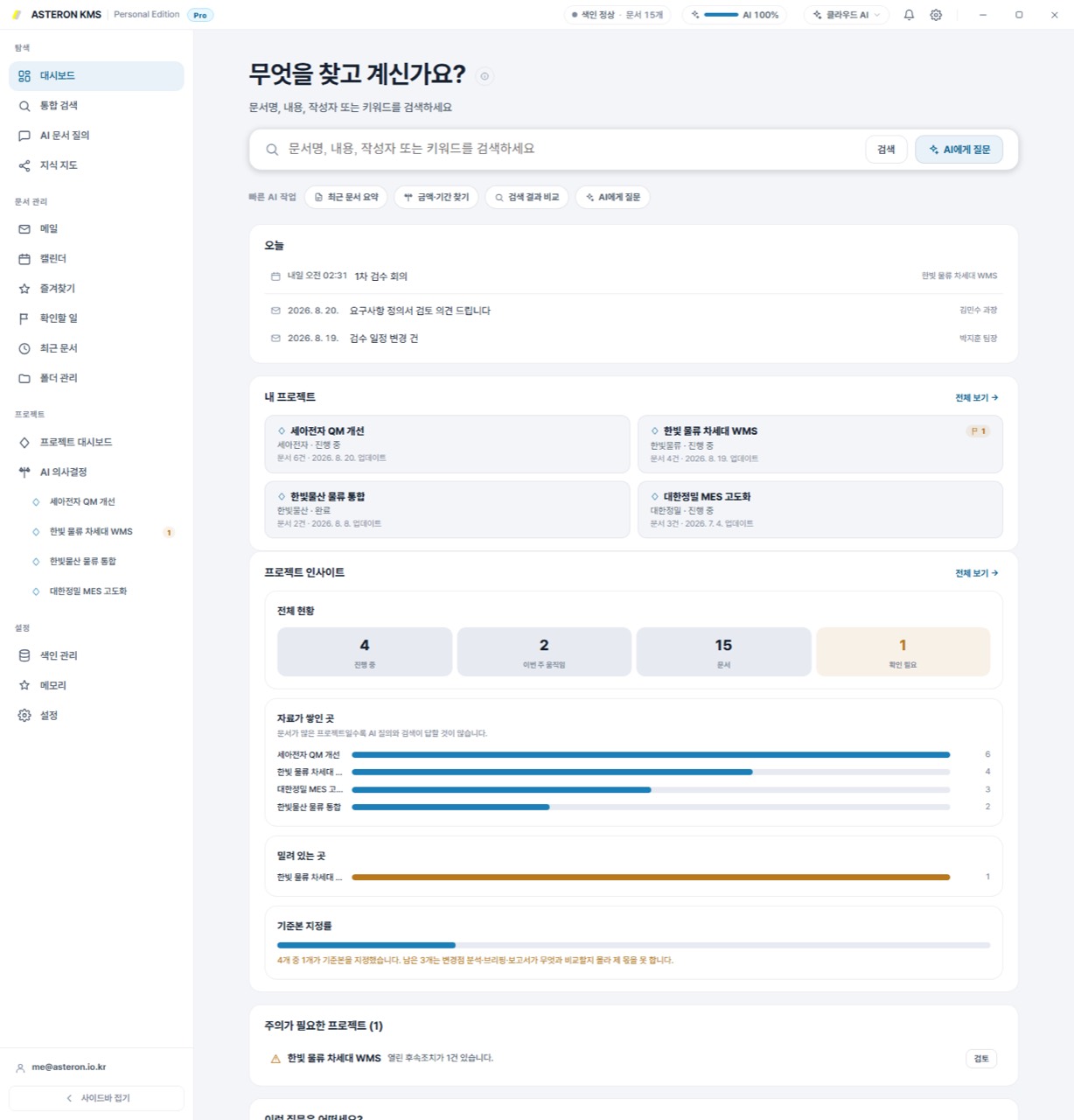
WorkroomDocumentMailKnowledgeReportLog
As data increases, presence becomes more important than retrieval.
PROJECT
Company A smart factory construction
Document 184 · Mail 37 · Schedule 8 · Follow-up 6
Customer
A Corporation contract.hwp
Contract amount
350,000,000 won Change Agreement_v3.hwp
Project period
2026.03.01 ~ 2026.11.30 Confirmed
OPEN FOLLOW-UPS
Review of contract changes
Check SLA scope
Customer confirmation of delivery date
SIX VIEWS, ONE PROJECT
The six tabs in the project details show the same knowledge as different tasks.
AI usage does not go away just by opening tabs or viewing lists. Saved documents and status are displayed first, and only functions that require analysis are executed after the user clicks.
01 · WORKROOM
Questions/Briefing/Follow-up
Ask only project-scoped questions, see current status briefings, change candidates, incomplete follow-ups and notes all in one screen.
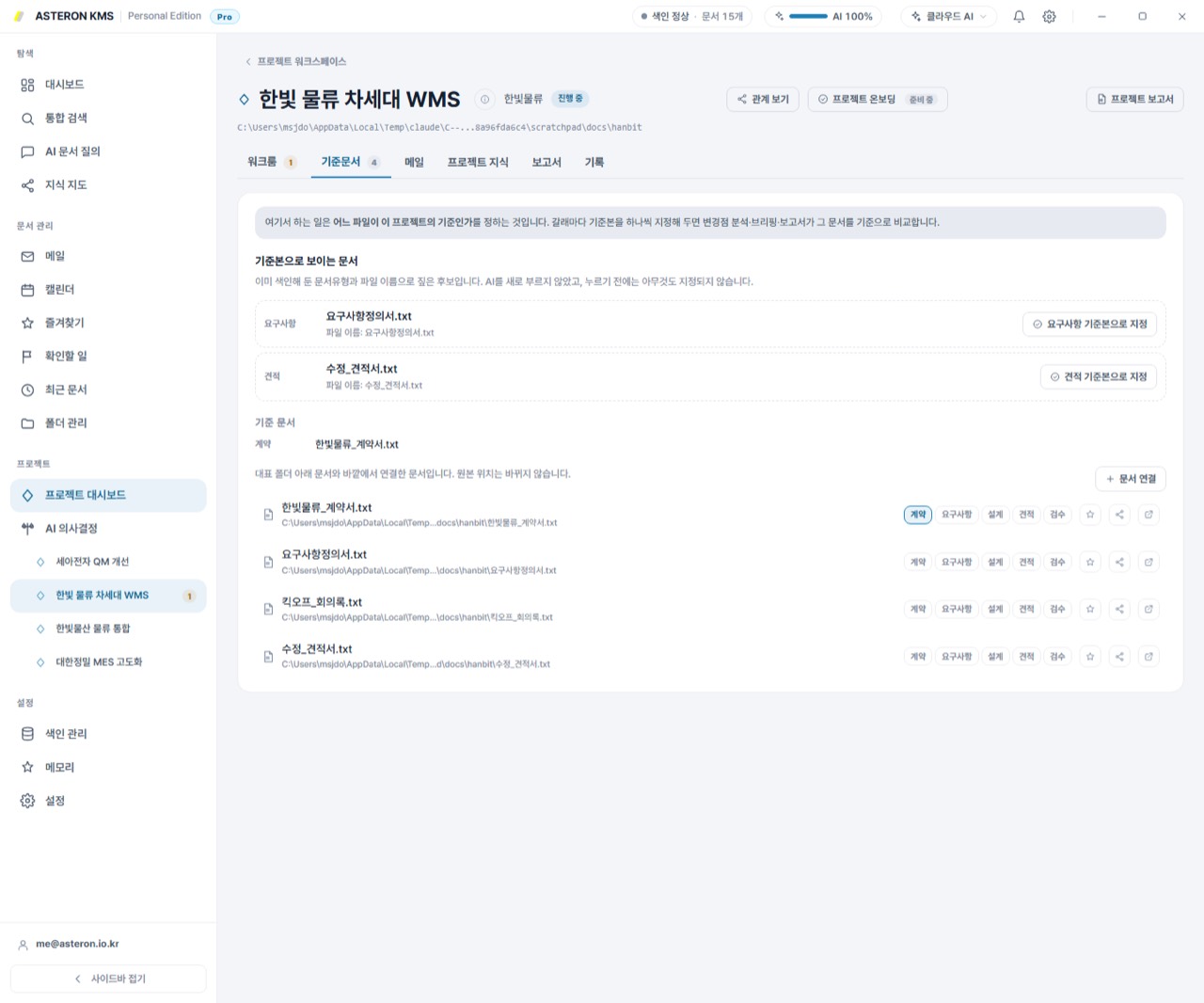
02 · DOCUMENTS
Reference document and linked document
View documents under the main folder and documents linked directly from outside the folder together. Expand the scope of your project without moving or copying the originals.
03 · MAIL
Related emails and attachments
Collect e-mails connected to the project, and HWP, PDF, and Office attachments received from e-mails are also linked to the project document while maintaining the source.
04 · KNOWLEDGE
Specification with definite values and basis
Manage key project values such as customer, amount, period, and person in charge by section. Each value is linked to a supporting document, and confirmed values are locked to prevent automatic changes.
05 · REPORTS
Keep the results you created
You can leave a list of project status, risk, and handover reports, and reopen past and new reports as if they were versions.
06 · HISTORY
Timeline of activities and decisions
Beyond file changes and notes, it keeps decisions in time order: which change candidates were applied or dismissed, and which linked mails were sent.
PROJECT CORPUS
One folder is not a project boundary.
Representative folder
Index all documents under path
+Externally linked document
Outside folder·Drive·Notion·OneDrive data
+Mail and Attachments
Conversations and files linked to projects
+Schedule and user history
Confirmed schedule/follow-up/memo
All functions use the same project data collection scope to avoid briefings, change analysis, and reports looking at different data.
TRUST BUILT INTO THE WORKFLOW
The project was designed so that its condition can be trusted even after long-term use.
LOCKED FACTS
Confirmed values are locked.
The contract amount or period confirmed by the user is not quietly overwritten even when a new document is received. It is separated into conflict candidates and displayed first.
FRESH BRIEFING
Only updates what has changed.
Determine the up-to-date status of the brief with the project document fingerprint. If there are no changes, the saved version is used as is, and if only some changes are made, it is updated by adding only the changed documents.
FAIL SAFE
Even if AI stops, the project remains.
AI analysis failure does not spread to documents, specifications, memos, and saved briefing inquiries. The default workspace will continue to open with only local data.
NEXT WORKFLOWConnects requests received by email to actual work on the project.
03 · MAIL TO ACTION
Turn a read email into real work.
Stop copying requests and possible dates out of your inbox. ASTERON organizes them, then adds only what you approve to tasks and the calendar.
MAIL + AI
One email becomes a request, a schedule, and project context.
Don't stop at summarizing your mail and drafting a reply. Find to-dos, promised dates, attached documents and related projects and suggest them as candidates for next action.
AI organizes and suggests. Addition, reflection, and sending are determined by the user.
Follow-up and deadline candidate extraction
Recognize schedule candidates and change possibilities
Link to related projects and materials
Draft reply with selected basis, no automatic sending
MAIL CLIENT, BUILT INTO KNOWLEDGE
Treat mail as work material rather than just another inbox.
Screen, search, and AI use a local copy directly synchronized with the mail server. Already received emails can be found offline, and the original emails remain in the existing service.
01 · IMAP / SMTP
Multiple work accounts in one place
Connect Naver Hiworks and general IMAP/SMTP accounts to view integrated received mail and account-specific folders. Read, Star, Move, and Delete are reset to the mail server.
02 · FOUR PANE VIEW
Mailbox·List·Body·Context
Put your mailbox, message list, body, and ASTERON Context panels on one screen. As you read the text, check related projects, materials, and extracted tasks.
03 · UNIFIED SEARCH
The email body is also used as the basis for integrated search.
Put the title, body, and sender in the same search flow as the document. Search results distinguish between email sources and take you directly to the original conversation.
04 · ATTACHMENTS
The attachment becomes a project document.
HWP·PDF·Office attachments in project connection emails are indexed through the existing document parser. Even if there are corrupted attachments, they are isolated to a separate parser process.
05 · THREAD
The conversation continued in one flow.
Group the same conversations based on References and In-Reply-To. Instead of re-reading long email threads, summarize the entire flow or prepare a reply with selected material.
06 · SAFE READING
External HTML is not trusted as is.
Sanitize email HTML and display it in a sandbox. Remote images that may contain tracking pixels are blocked by default, and external links are opened in the system browser.
FROM MESSAGE TO ACTION
The process of turning one email into actual work
01
Project connection
First check the sending address, customer company, project name, and existing thread using the rules. If you are confident, connect it, and if it is ambiguous, leave it as a candidate.
02
Summary and extract at once
Create a one-time analysis of summaries, requests, deadlines, schedules, and change candidates in your work email and save them to avoid repeating costs when you open them again.
03
Follow-up and Schedule Candidates
“Request for revised quote by Friday” is shown as a candidate for follow-up, and “Change inspection date to September 22nd” is shown as a candidate for rescheduling.
04
Approved by user and reflected
The actual status changes only when [Add Follow-up] and [Reflect Calendar] are pressed. Manual project linking always takes precedence over the following automatic rules:
05
Draft reply with selected evidence
Creates a draft based only on the current thread and the document/project specifications checked by the user. Drafts only come to the writing window and there is no automatic sending route.
✓
HUMAN IN CONTROL
Organizes, but does not execute arbitrarily.
Requests, schedules, and projects found in the email are all candidates. No tasks, schedules or shipments will change until you approve them.
NEXT WORKFLOWThe confirmed schedule prepares the necessary context in advance of the meeting.
04 · READY BEFORE THE MEETING
It already knows your schedule. Now it prepares the meeting context.
If your calendar tells you when to meet, ASTERON prepares why you meet, what to check, and even what you decided on last time.
CALENDAR + AI
Thirty minutes before a meeting, the context is already prepared.
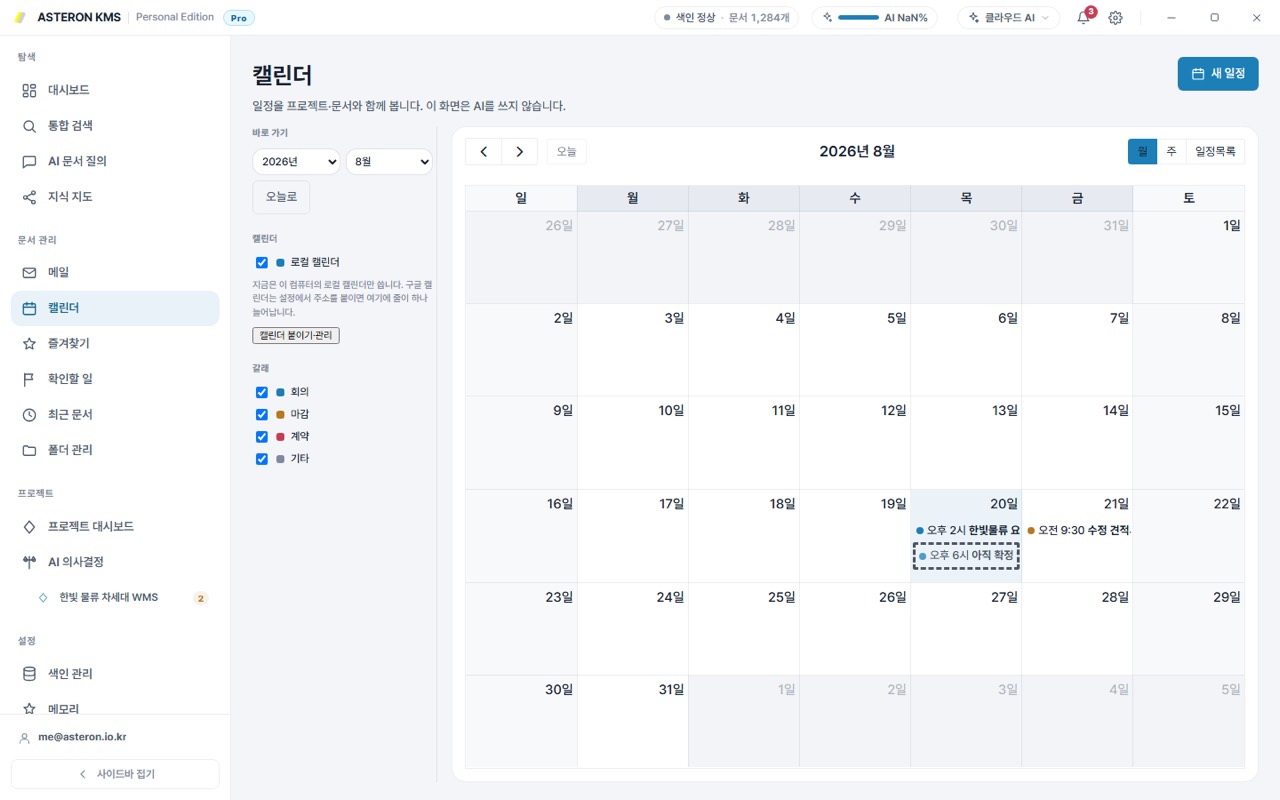
Gather local schedules and Google Calendar/Outlook schedules on one screen. Schedule inquiry and rule notifications operate without AI, and related project documents, emails, and current status are analyzed only when creating a meeting briefing.
TODAY · 14:00
Final discussion on contract change for Company A
30 minutes notice
Past decisions
Maintenance conditions are negotiated separately from the supply contract
Recent changes
Contract amount 320 million → 350 million
Customer Recent Requests
Check whether delivery date can be shortened by 2 weeks
Unresolved
SLA range / equipment additional cost
CALENDARS IN ONE CONTEXT
Prepare the schedule created anywhere in the context of the project.
Connect the external calendar to the KMS schedule table rather than attaching it as a separate screen. So, notifications, projects, searches, and meeting briefings all use the same schedule.
LOCAL
ASTERON CALENDAR
Connect meetings, deadlines, contracts, and other schedules to projects and manage them directly. Schedule inquiry and notifications work without AI.
Direct writing · Project connectionGOOGLE
Google Calendar
Links the selected calendar to synchronize changes. Read-only ICS subscriptions are also supported, so you can choose a method that fits your organization's policies.
OAuth Sync · ICS SubscriptionMICROSOFT 365
Outlook Calendar
Reads your Microsoft account's calendar and uses it to prepare KMS calendars and meetings. The original calendar is managed in Outlook.
Read-only · Automatically reflected
BEFORE
Before the meeting
When a schedule is approaching, create a readiness alert by checking unfinished follow-ups and the number of documents changed since the previous meeting.
→
BRIEF
Create briefing
Organize past decisions, recent changes, customer requests, and unresolved issues based on related documents and emails.
→
MEETING
In meeting
Re-find the necessary evidence through project questions, and leave notes and follow-up actions on what has been confirmed.
→
AFTER
After the meeting
When new schedules, emails, or documents come in, they become new material for the next notification, change analysis, and report.
SMART NOTIFICATION
Notifications tell you the next action, not the number of new materials.
Rule detector checks local data every 5 minutes. Notify again only when steps progress or values change, and apply different notification levels for each project.
Preparing for a meetingImminent schedule and changed dataDeadline imminentFollow-up measures the day before and on the dayDelayed workStep-by-step notifications for 1, 3, and 7 daysContract expirationBased on confirmed date from D-90Document Change BundleShort changes at onceEmail request/schedule changeOnly extracted job candidates
NEXT WORKFLOWWhen new documents come in after a meeting, we look for differences from the current status.
05 · CHANGE INTELLIGENCE
What matters isn't the new document. It's what changed.
Just because there is another change agreement, the entire contract is not read again. Compares the current project status with the new document and shows only the changes as candidates.
PRO
ASTERON finds the change. You make the decision.
Read the new document together with the current specification committed to the project. Rather than secretly modifying the confirmed value, AI shows the old and new values, basis location, and whether there is a conflict with the confirmed value for each change candidate and then waits for user approval.
General AI“Summary this contract.”ASTERON“Check only what has changed compared to the current project.”
CHANGE REVIEW FLOW
Four steps to check a new document against its current state
01
Fix current value
In the Knowledge tab, the customer company, amount, period, conditions and the basis for each value confirmed by the user are used as a comparison standard.
02
New data analysis
Read documents such as new contracts, estimates, and requirements, and select numbers, dates, conditions, and expressions that are different from the current value as candidates.
03
Review of evidence and conflicts
Shows the old value, new value, original location, and supporting document. If it differs from the locked deterministic value, it will be marked more strongly as a conflict.
04
Apply or dismiss
Only candidates you apply become the new current value. Apply and dismiss decisions stay in the History tab so you can retrace them later.
NOT JUST A REDLINE
See the change in the entire project, not just the difference between two documents.
A simple phrase comparison only shows line changes. ASTERON organizes the information based on whether the new material conflicts with the values currently managed in the project.
AMOUNT
Amount and Quantity
Displays the old and new values of numbers that directly affect decision-making, such as contract amount, quotation amount, quantity, and unit price, side by side.
DATE
Period and Schedule
Find changes connected to the project schedule, such as start date, delivery date, inspection date, and contract expiration date, and even review the calendar impact.
SCOPE
Scope and conditions
Condition changes that are difficult to capture with numbers alone, such as maintenance scope, SLA, delivery conditions, and excluded items, are also organized as candidates.
EVIDENCE
Supporting documents and locations
It doesn't just show the AI's conclusions. You can check the original document on which part of the document the candidate was created.
CONFLICT
Indication of confirmed value conflicts
User-locked values are treated with a higher level of trust. Even if different content is found, it is separated by conflict rather than automatically changed.
HISTORY
Accumulation of decision history
Whether each candidate was applied or dismissed is kept in the project history. The next brief and report are written from the latest applied state.
01
Compare to current state
It is not compared between new documents, but is based on the current value confirmed in the project.
02
Indication of conflicts and grounds
It also presents what has changed, the location of the original text, and whether there is a conflict with the confirmed values.
03
Reflected only after approval
Only candidates accepted by the user become the new current state of the project.
NEXT WORKFLOWThe accumulated current status and change history become reports and decision data.
06 · FROM KNOWLEDGE TO OUTPUT
It doesn't stop at knowing. It creates the deliverable.
The knowledge accumulated in ASTERON is not data for the next question, but material for the next task. Create reports and decision-making materials with already connected projects.
PRO
No need to gather everything again. Start with the knowledge already built.
Reassemble project specifications, briefings, documents, emails, follow-up actions, and supporting materials into actual work results. Reports and decision-making data can be modified, updated, and exported even after creation.
Rather than AI speaking confidently, AI that shows grounds for opposition and even insufficient information.
PROJECT BRIEFREPORTDECISIONCHANGE REVIEW
REPORT STUDIO
Accumulated project knowledge into readable reports.
Once you determine the purpose, audience, period, and table of contents of the report, ASTERON first researches the project facts locally and creates a body with connected evidence.
OnboardingStatusRiskHandoverBuild it yourself
Four Step Creation WizardType → Purpose, audience, and scope → Outline → Final review
Table of Contents Freely EditableChange titles, instructions, order, and add necessary sections directly
Basis and items requiring confirmationLink document evidence to each fact and display insufficient information without making it up
Rewrite section onlyAdditional investigation and modification of only necessary parts without shaking the whole thing
Living ReportLeave the previous report and create a new version that reflects only the changed documents
ExportSave PDF through HTML/Markdown and printing
DECISION SUPPORT
Don’t just accept recommendations Check the judgment structure.
When an agenda item is registered, related data is collected, alternatives are created, and the scores for each standard, as well as the pros and cons, risks, and grounds for opposition are reviewed together.
Recommendation
Option B · Confidence: high
8.2/10 · 18% lower cost · 2 counter-evidence items · 1 missing piece of information
Automatic data collectionExplore agenda-related evidence in project documentation and finalization status
Options and evaluation criteriaStructures possible alternatives and comparison axes such as cost, schedule, and risk.
Pros, Cons and RisksIndicate not only favorable grounds for recommendation but also unfavorable conditions
Grounds for oppositionReduce confirmation bias by separately revealing documents that conflict with recommendations
Insufficient informationSpecify why you are unsure and ask further questions to confirm
Evidence TrackingReturn to the source document of the conclusion for a final human confirmation
OUTPUT THAT STAYS USEFUL
It is not an answer that is given and then disappears, but the result remains to be reused in the next task.
LOCAL RESEARCH
The investigation is conducted locally first.
After creating a fact sheet through project specifications, briefing, follow-up, records, and document retrieval, use AI at the writing stage to reduce unnecessary calls.
EVIDENCE FIRST
Distinguish between facts and analysis
Separate AI's interpretation from the facts confirmed in the document, and leave any parts that lack evidence as items requiring confirmation.
REVISION SAFE
Preserve past results even if modification fails
Replace results only after the new section or update is complete. Even if you run into problems while editing, you can still read the reports you've already created.
The contract received today becomes the new basis for the project, the requests in the email become follow-up actions, and the schedule continues with the meeting briefing. The information accumulated in this way becomes the material for the next result.
This is the KMS ASTERON is talking about.
BACK TO INTROCheck the overall introduction flow and rate plan of ASTERON KMS.
check_circle
Coming soon.This interaction is being connected in the next release.
ASTERON AssistantAI answers first, and hands you to our team when needed
AI answers can be wrong. Never enter passwords or payment details.
 ASTERON