

Field Service Management

One inquiry,
carried all the way to payment.

Field operations software for installation and on-site service businesses. Inquiries from your blog or website flow into quotes, schedules, job records, invoices and payments, and after-sales service without retyping, and FIELD Master AI answers your questions.

Why

Field work scattered across chat, spreadsheets, photo galleries and notebooks

Inquiries live in a messenger, quotes in a spreadsheet, job photos in a phone gallery and unpaid amounts in someone's head. The busier the day, the more slips through.

01

Inquiries seen too late

The business that calls back first wins the job. Inquiries spread across channels get answered late.

02

Typing the same thing again and again

The customer's name and address get retyped into the inquiry, quote, schedule and job record, and mistakes creep in.

03

Missed payments

There is no single view of jobs that are finished but not yet paid.

  1. STEP 1InquiryArrives with photos through an intake link
  2. STEP 2QuotesMade straight from the inquiry, sent as a link, accepted by the customer
  3. STEP 3ScheduleOnce accepted it becomes a job with a date and a crew
  4. STEP 4Job recordBefore and after photos and materials used
  5. STEP 5Invoice · paymentCreate invoices and record payments, including partial ones
Features

What you enter once follows you to the next step.

Create a quote straight from an inquiry; once the customer accepts it becomes a job, and the job carries invoices, payments and after-sales service.

INQUIRIES

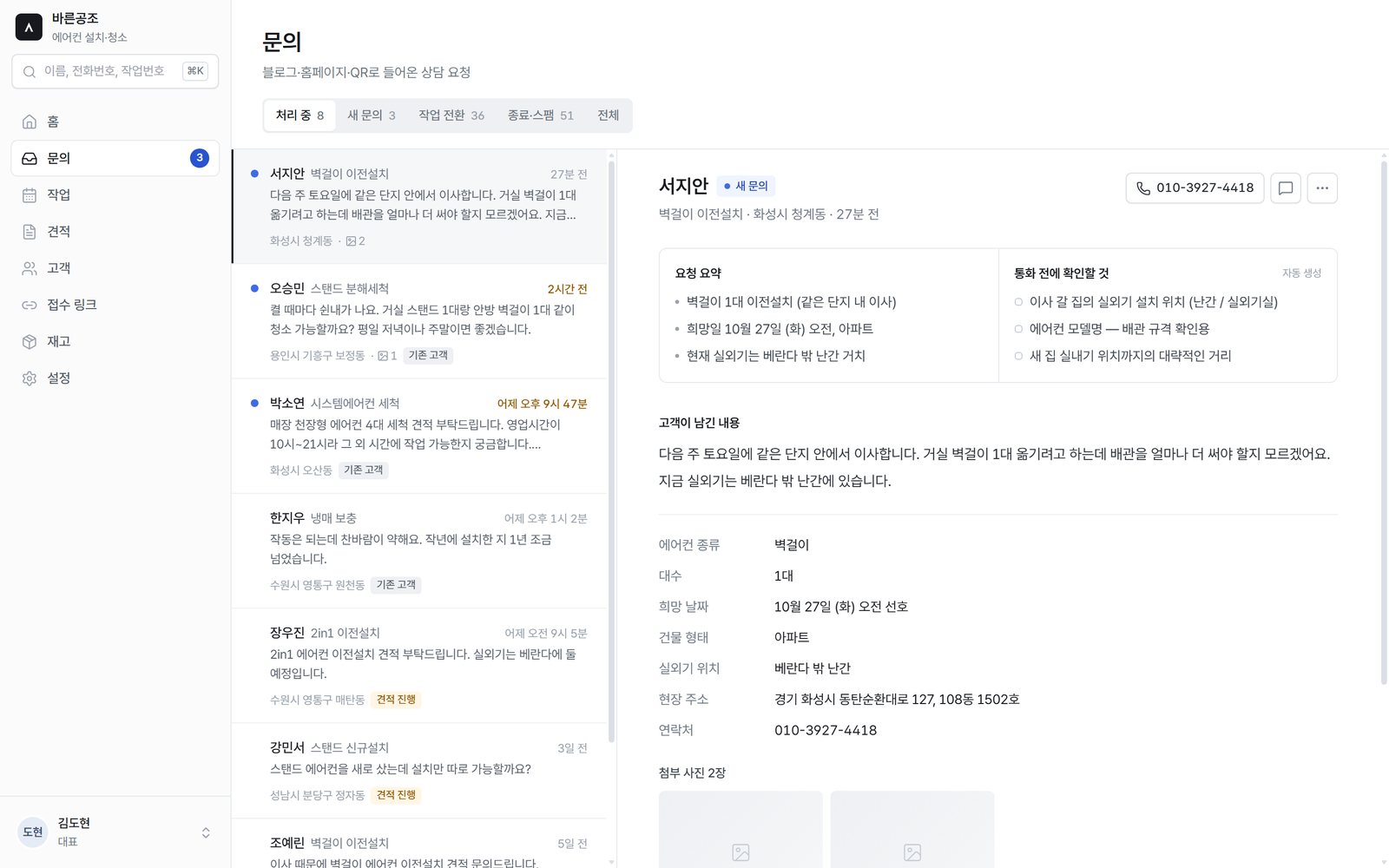
Every inquiry in one inbox, wherever it came from

Create an intake link for each blog post, website or flyer QR code, and customers leave inquiries with photos. You can also see in numbers which link brought in inquiries and contracts.

  • Inquiries with photos, preferred dates and site address
  • Returning customers are recognized and linked
  • Visits → inquiries → contracts per intake link
An inquiry opened in the inbox
ESTIMATES

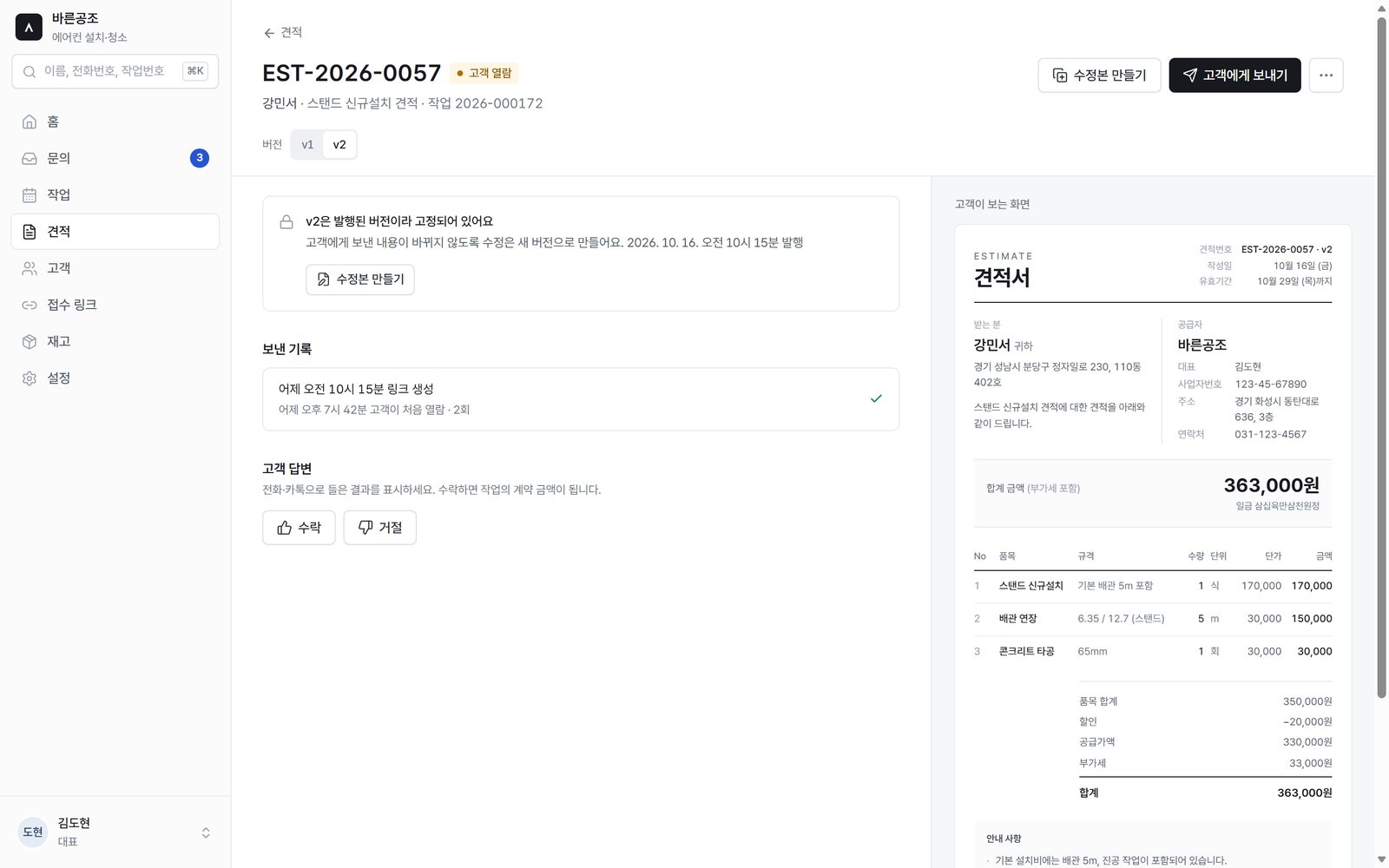
Send quotes as links; customers accept them

Typing an item name brings up prices you used before, so quotes come together quickly, and you send them as a link. You see right away whether the customer opened or accepted it, and acceptance puts the contract amount on the job.

  • Quote straight from an inquiry, then 「Make a job」 once accepted
  • Revisions are kept as versions
  • Quotes left unanswered come back up on the home screen
  • PDF quotes
The quote editor and the quote the customer sees
JOBS

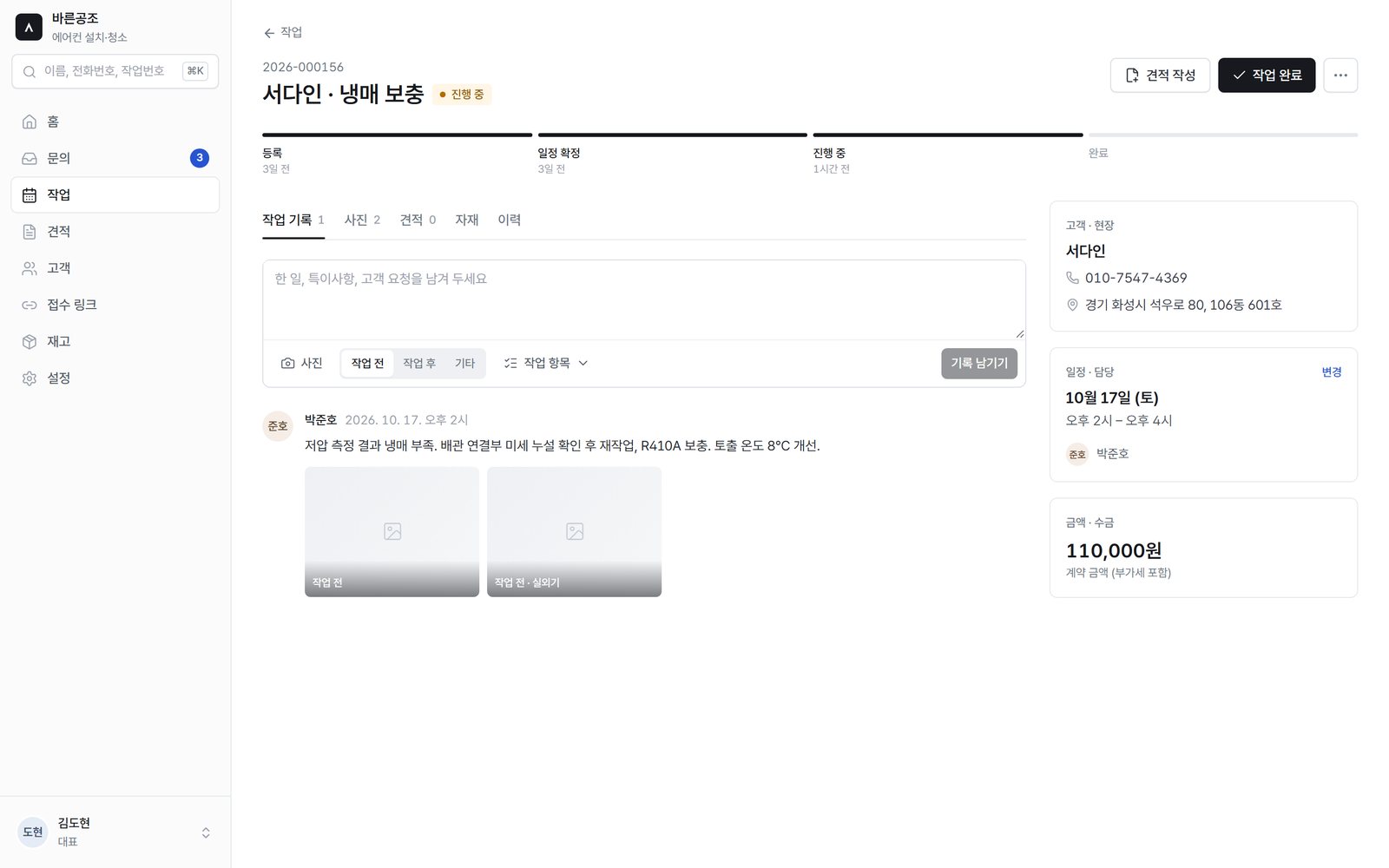
Schedule, assignee and job record on one screen

Each job keeps its schedule, assigned staff, before and after photos, notes and materials. When the same customer calls again, last time's record is right there.

  • Weekly schedule and unscheduled jobs
  • Materials used come off inventory
  • Send a completion report as a link
  • Multiple invoices, partial payments, overdue invoices flagged
  • Log after-sales issues on finished jobs and keep a record of how they were handled
Job detail screen
FIELD

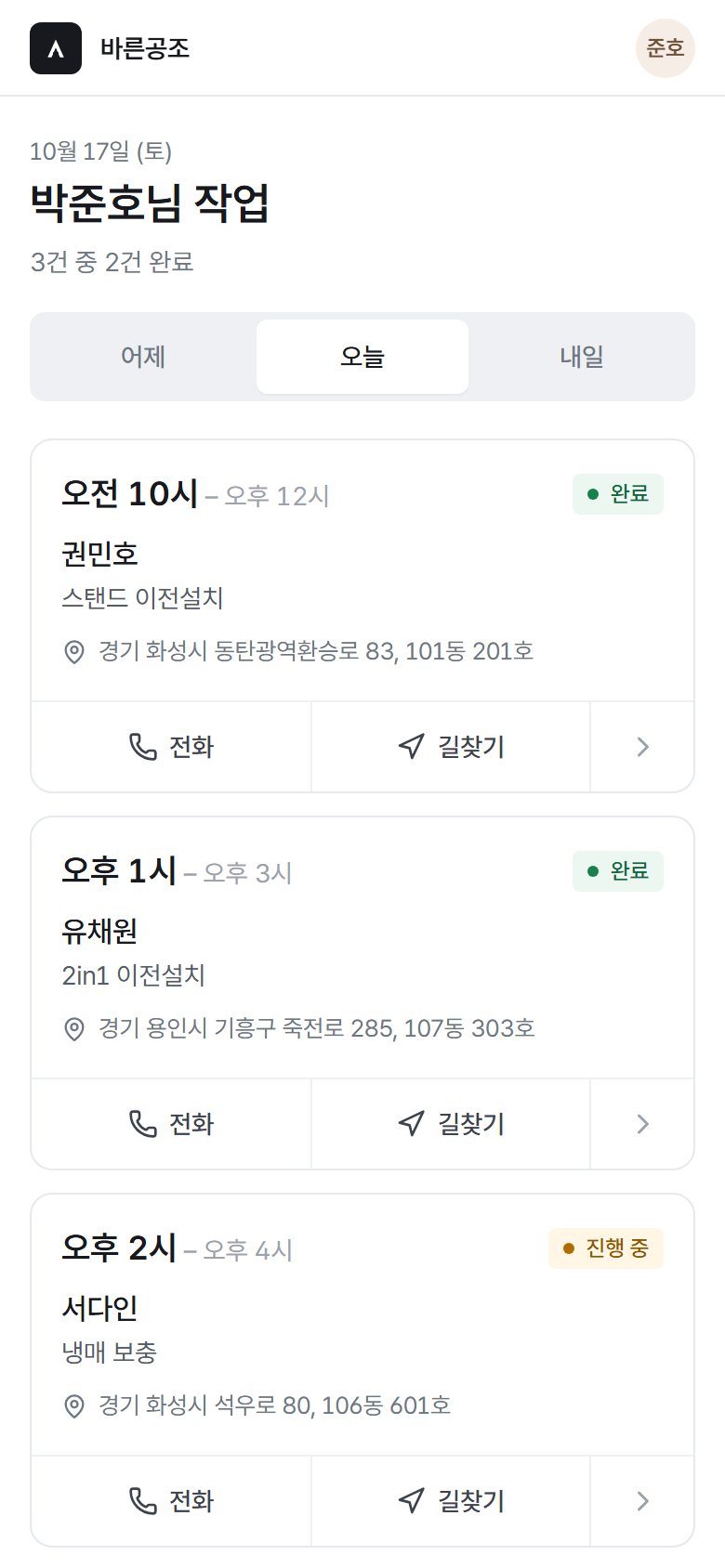
Field staff see only today's work on their phones

Staff see only the jobs assigned to them. They can call and get directions in one tap and attach photos taken on site to the job.

  • Yesterday, today and tomorrow
  • Accounts and permissions per staff member
Today's job list on the field staff screen
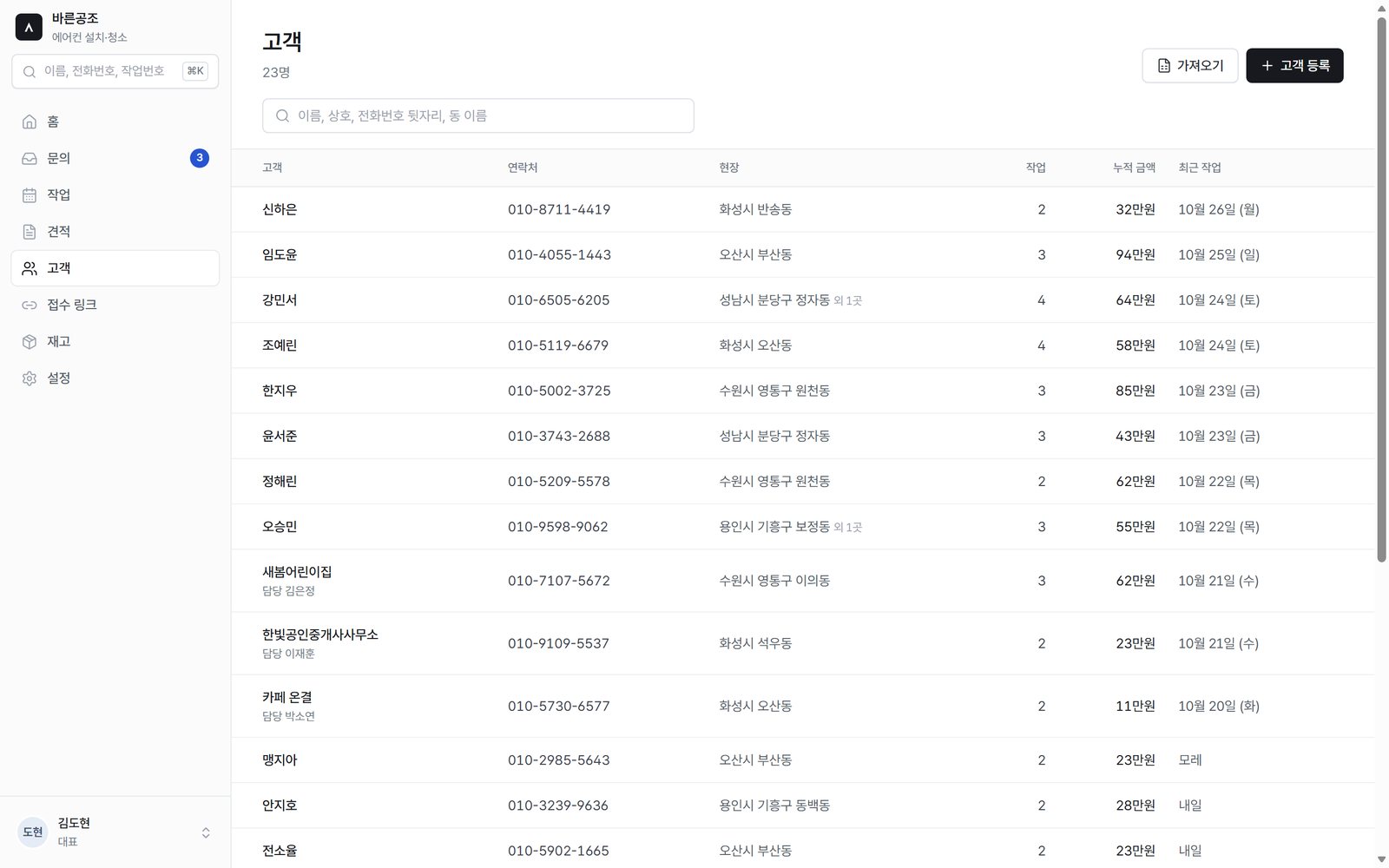
CUSTOMERS · INVENTORY

Customers and materials, too

Each customer builds up a job count, lifetime total and last job date. Import your existing Excel or CSV customer list as is, and materials used are reflected in inventory.

Customer list screen

The business and customer details on screen are fictional samples made for illustration.

FIELD Master AI

Ask FIELD Master AI. It answers from
your business data and gets the work ready.

Searching for a customer and hopping between menus becomes one sentence. Ask looks up inquiries, jobs, quotes, customers and inventory itself, and prepares the fiddly work, like scheduling or drafting a quote, as a confirmation card. Check it and press [Run]. FIELD Master AI helps you get set up from day one.

AskLookups are instant; changes apply only after you press [Run]

Sort out the quotes with no reply

  • Quote list lookup

There are 3 quotes waiting for a reply.

  1. Sehwa Daycare System A/C cleaning · 968,000 KRW viewed, 5 days
  2. Hyerin Jo Wall unit relocation · 280,500 KRW not opened, 4 days
  3. Minseo Kang New floor unit install · 363,000 KRW 2 days
Auto-generated · may be wrong

Book the Sehwa Daycare visit for Friday at 2 pm

  • Job list lookup

I made a confirmation card. Check it and press [Run].

Confirmation card Change schedule · crew
Job
Sehwa Daycare · System A/C cleaning
Schedule
Fri, Oct 23 · 14:00
Crew
Dohyun Kim
RunCancel

Applied

Try asking

  • What's on today?

    Lists today's jobs and times by staff member

  • Sort out the quotes with no reply

    Gathers how long ago each was sent and whether the customer opened it

  • Summarize new inquiries

    Briefly summarizes what customers wrote and their form answers

  • Move the Sehwa Daycare job to Friday at 2

    Prepares a schedule change card; it applies when you press [Run]

  • Minseo Kang accepted the quote by phone

    Prepares a card that records the acceptance

  • Stock in 20 rolls of pipe tape

    Prepares a stock-in card that adds to inventory

Finds the answer

Fourteen lookups across schedules, inquiries, quotes, customers, the price list, inventory and staff. No more hopping between menus.

Gets the work ready

Fifteen tasks, just by asking: registering customers and jobs, changing schedules and crews, sorting inquiries, drafting and issuing quotes, stock in and adjustments.

Nothing changes without your OK

Every change is shown first as a confirmation card and applies only when you press [Run]. It never deletes or sends anything to customers, and never goes beyond the user's own permissions.

  • Ctrl+J from any screen
  • Off until the owner agrees
  • Only data the user can view on screen is sent
  • Conversations are not kept on the FSM server

Business and customer details in the example are fictional samples. AI answers can be wrong and are labeled as auto-generated. How to use FIELD Master AI

PRICING

One plan for your field operations.

Get started

Start managing your field operations.

Manage everything from inquiries to payments in one place. Contact us with questions about features or getting started.

check_circle

Coming soon.This interaction is being connected in the next release.